Cancel e-Way Bill and and Cancel/Delete Voucher in TallyPrime
If you’ve generated e-Way Bill for a transaction in TallyPrime, you can cancel the e-Way Bill and cancel or delete the voucher along with it.
You can perform these actions using the familiar shortcuts: Alt+X to cancel and Alt+D to delete a voucher. TallyPrime will guide you do the rest, accordingly.
Cancel e-Way Bill and Voucher
- Open the voucher in alteration mode and press Alt+X (Cancel).
You will come across one of the two scenarios:
Scenario 1: The 24-hours time limit has not exceeded for e-Way Bill or the e-Way Bill has no Part B details.

-
Press I (Cancel e-Way Bill & Voucher) to cancel the e-Way Bill on the portal and cancel the voucher in the Company Book.
-
Press Ctrl+A to save the cancellation details.
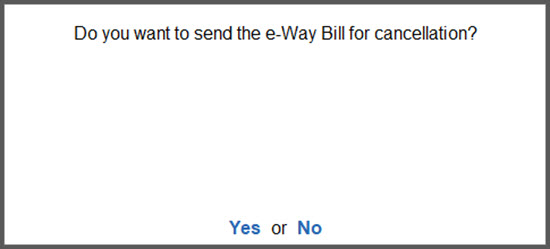
A message appears asking confirmation to send details for cancellation.
- Press Y to exchange the e-Way Bill cancellation details with the portal.
You will see a confirmation message indicating that the e-Way Bill has been cancelled successfully.
Scenario 1: The 24-hours time limit has exceeded for e-Way Bill.
If you have e-Way Bill with Part B details, a message appears indicating that the time limit for cancellation has exceeded.

- Press B (Back) to return to the Voucher alteration screen without proceeding further.
- Press C to cancel the voucher in TallyPrime. However, you are not recommended to do so, as this will only cancel the voucher in TallyPrime and will not impact the e-Way Bill.
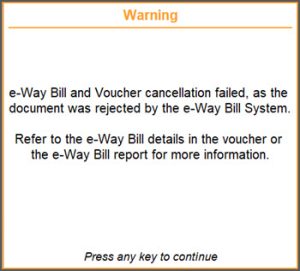
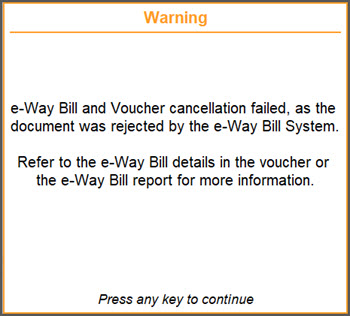
- If you press I (Cancel e-Way Bill & Voucher), you will see the message about rejection of cancellation of e-Way Bill by the portal and failure to cancel the voucher.
Cancel e-Way Bill and Delete Voucher
-
Open the voucher in alteration mode and press Alt+D (Delete).
You will come across one of the two scenarios:
Scenario 1: The 24-hours time limit has not exceeded for e-Way Bill or the e-Way Bill has no Part B details.

-
Press I (Cancel e-Way Bill & Voucher) to cancel the e-Way Bill on the portal and delete the voucher in the Company Book.
-
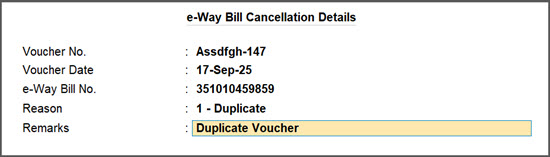
Fill the Cancellation Details of e-Way Bill.
-
Press Ctrl+A to save the cancellation details.
A message appears asking confirmation to send details for cancellation.
- Press Y to exchange the e-Way Bill cancellation details with the portal.
You will see a confirmation message indicating that the e-Way Bill has been cancelled successfully.
Scenario 1: The 24-hours time limit has exceeded for e-Way Bill.
If you have e-Way Bill with Part B details, a message appears indicating that the time limit for cancellation has exceeded.

- Press B (Back) to return to the Voucher alteration screen without proceeding further.
- Press D to delete the voucher in TallyPrime. However, you are not recommended to do so, as this will only delete the voucher in TallyPrime and will not impact the e-Way Bill.
- If you press I (Cancel e-Way Bill & Voucher), you will see the message about rejection of cancellation of e-Way Bill by the portal and failure to cancel the voucher.
Cancel e-Way Bill and Retain the Voucher Using More Details
- Open the voucher in alteration mode.
- Press Ctrl+ I (More Details)> Show More > e-Way Bill Cancellation Details.
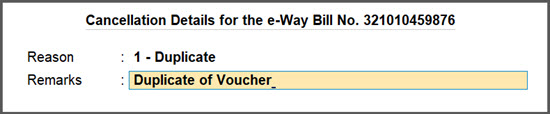
- Fill in the e-Way Bill Cancellation Details and save.
- Press Ctrl+A to save the cancellation details for e-Way Bill in the voucher.
You will come across one of the two scenarios:
You will come across one of the two scenarios:
Scenario 1: The 24-hours time limit has not exceeded for e-Way Bill or the e-Way Bill has no Part B details.
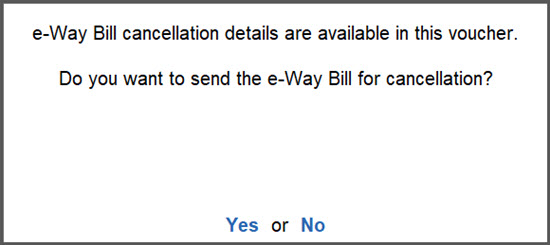
You will see a message that the invoice has the cancellation details.
-
Press Y to send the cancellation Details of e-Way Bill to the portal.
If you press N, the cancellation details will be saved.
You can see these vouchers appearing under the section For EWB Cancellation of the e-Way Bill report. From there, you can send such e-Way Bills for cancellation.
Note: If the e-Way Bill is not cancelled and you reopen the same voucher later, a message will appear when you try to save it. This message will confirm that cancellation details are available for the e-Way Bill and ask whether you want to proceed with sending them for cancellation.
Scenario 1: The 24-hours time limit has exceeded for e-Way Bill.
If you have e-Way Bill with Part B details, you will see a message with the information that the invoice has the cancellation details but the allowed time limit has crossed.
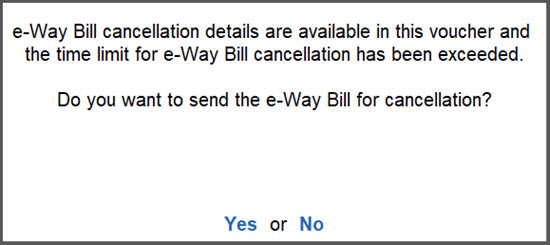
If you attempt to cancel by selecting Yes the cancellation request will be rejected by the e-Way Bill portal without impacting the vouchers in TallyPrime.
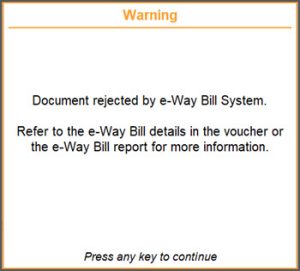
If you select No, the cancellation details will remain in the voucher but you cannot proceed with the cancellation of the e-Way Bill.
In all the above scenarios, the vouchers will not get cancelled or deleted in TallyPrime.
You can update cancellation details for your e-Way Bills from the e-Way Bill report, using the F10 (Cancel EWB) option.
If you are working on TallyPrime Release 6.2 or earlier versions, you can follow the below-mentioned steps to cancel the e-Way Bill.
After generating e-Way Bill, you may need to cancel an e-Way Bill in TallyPrime when the rate or quantity of a stock item changes or the buyer cancels the order. As per regulations, you can cancel the e-Way Bill within 24 hours of generating the e-Way Bill.
Step 1: Cancel e-Way Bill in TallyPrime
-
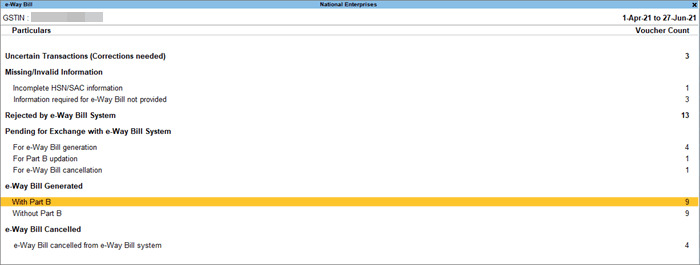
Press Alt+G (Go To) > type or select e-Way Bill > press Enter.
-
Drill down from the relevant section; for example, the Without Part B section under e-Way Bill Generated.
-
Select the voucher for which the e-Way Bill needs to be cancelled.

-
Press F10 (Cancel EWB). The e-Way Bill Cancellation Details screen will appear.
-
Select the Reason for cancellation and enter the Remarks.
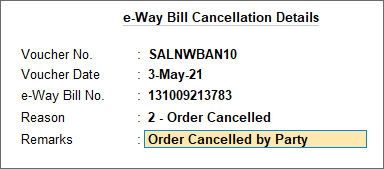
- Accept the screen. As always, you can press Ctrl+A to save the details.
The transaction will move to the For e-Way Bill Cancellation section under Pending for Exchange with e-Way Bill System.
If you have cancelled the e-Way Bill through some other medium on the portal, and want to update the status in Tallyprime, select the voucher and press Ctrl+F10 (Mark as Cancelled) in the e-Way Bill report. The voucher will move to the Marked as e-Way Bill cancelled section under e-Way Bill Cancelled.
Step 2: Update Cancellation of e-Way Bill on Portal
Now you can send the e-Way Bills to the portal for cancellation from the Exchange menu.
- Press Alt+Z > Send for e-Way Bill.
In the Send for e-Way Bill screen, you can view the transactions that are pending for cancellation.
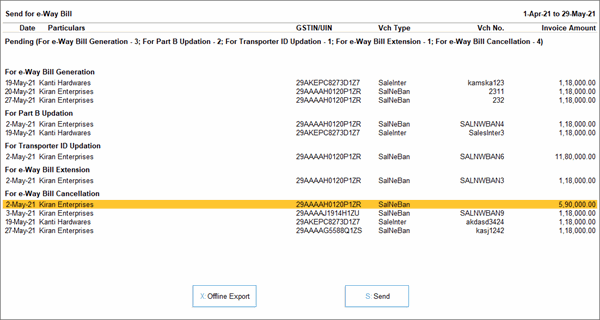
- Select the required transactions and press S (Send) to send the details. If you press S without selecting any transaction, then all the transactions will be sent.
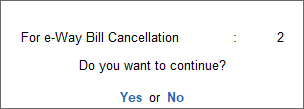
The following confirmation screen will appear, with the number of transactions lined up for e-Way Bill cancellation.
-
Select Yes to continue.
-
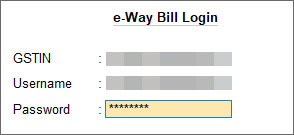
In the e-Way Bill Login screen, enter the login details and press Enter to continue.
You can cancel e-Way Bills for Multi-GSTIN as well.
The voucher will move to the e-Way Bill cancelled from e-Way Bill system section of the e-Way Bill report. Even after cancellation, the information like QR code and e-Way Bill number will be retained in the voucher for your reference in TallyPrime. You can also view the remarks you had entered while cancellation using the More Details option.
e-Way Bills for Multi-GSTIN (Release 3.0 & Later)
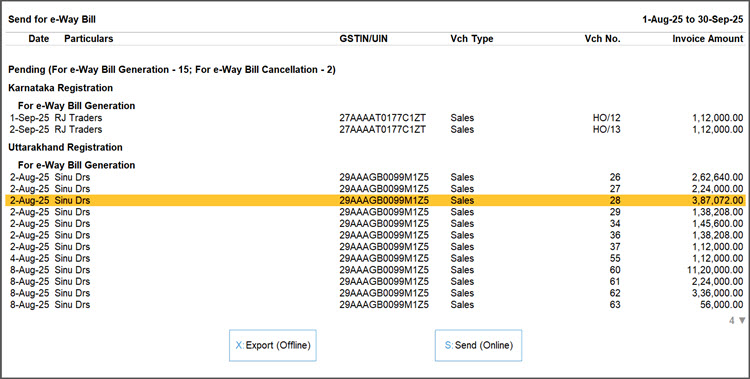
You can seamlessly cancel e-Way Bills even when you have multiple GST registrations.
-
In the Send for e-Way Bill screen, view and select vouchers for different GST registrations.
-
In the e-Way Bill login screen, enter the login details for your registrations one by one.
Q & A
- After the 24-hours time limit has exceeded, can I cancel the e-Way Bill and cancel or delete the voucher from my Company Book in TallyPrime?
- I entered the cancellation details for e-Way Bill and accepted them, instead of sending it for cancellation, I selected No. Will the cancellation details be saved?
- If I have generated the e-Way Bill details in the portal and later updated the e-Way Bill no. in my voucher in TallyPrime, can I cancel e-Way Bill from TallyPrime?